
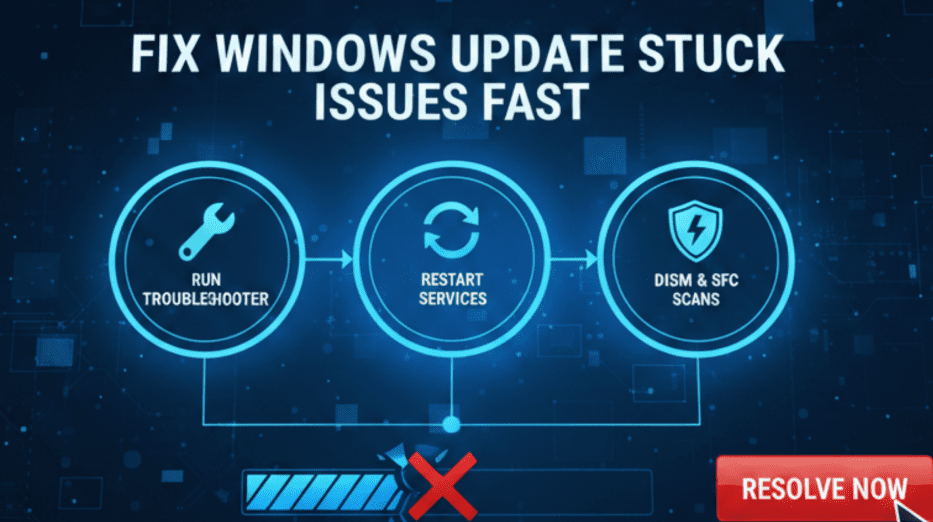
Windows update stuck at 0% ,however, one of the most frustrating issues users face . You click “Check for updates,” and instead of progress, the screen just freezes at zero—sometimes for hours.
Windows updates are essential for keeping your computer secure, stable, and equipped with the latest features. Whether you’re using Windows 10 or Windows 11, regular updates ensure protection against threats, improved performance, and bug fixes.
Windows updates are essential for security, performance, and system stability. But sometimes, the process doesn’t go smoothly. Your PC may freeze at a certain percentage, show “Installing updates…” for hours, or restart repeatedly without finishing. If your windows update stuck at 0 issue is interrupting your work, you’re not alone—this is one of the most common problems Windows users face.
In this guide, the best technical support company, explains why updates get stuck and how to fix the problem safely in Windows 10 and Windows 11.
Struggling with Windows Update stuck at 0%? This complete guide explains all causes and solutions for Windows 10 and Windows 11 update issues. Learn how to fix update errors, clear cache, reset components, and manually install updates with step-by-step instructions. Perfect for beginners and advanced users looking to resolve update problems quickly and effectively.
Understanding the Windows Update Process
To truly fix the issue of Windows update stuck at 0, it helps to understand how updates work in Windows 10 and Windows 11.
Windows Update goes through multiple stages:
- Checking for updates
- Downloading update files
- Installing updates
- Applying changes during restart
When it gets windows update stuck at 0%, the problem usually occurs in the download phase, where files are either not being retrieved or verified correctly.
Why Is Windows Update Stuck at 0%?
Before jumping into solutions, it’s important to understand the root causes. The update process involves multiple services, downloads, and installations, and any disruption can cause it to stall.
Common Causes
- Slow or unstable internet connection
- Corrupted update files
- Windows Update service malfunction
- Insufficient disk space
- Antivirus or firewall interference
- Pending system restart
- Outdated drivers or system components
Even a small glitch in these areas can halt windows update stuck at 0%.
Hidden Causes Most Users Ignore: Windows Update Stuck at 0
Beyond common reasons of windows update stuck at 0, here are some lesser-known causes:
1. Metered Connection Settings
If your Wi-Fi is set as metered:
- Windows limits update downloads
- Updates may appear stuck at 0%
Fix:
Go to Settings → Network → Wi-Fi → Properties → Turn OFF Metered Connection
2. Background Apps Consuming Bandwidth
Apps like browsers, streaming platforms, or cloud sync tools (like OneDrive) can slow updates.
Fix:
- Close unnecessary apps
- Pause downloads or syncing
3. Windows Insider Program Issues
If you’re part of insider builds:
- Updates may be unstable
- Servers may delay downloads
Fix:
- Leave Insider Program temporarily
- Switch to stable build
4. Group Policy Restrictions
In some systems (especially work PCs), updates may be restricted.
Fix:
- Press Win + R → gpedit.msc
- Navigate to:
Computer Configuration → Administrative Templates → Windows Components → Windows Update
Ensure policies are not blocking updates.
Basic Fixes You Should Try First : Windows Update Stuck at 0
Let’s start with simple solutions before moving to advanced troubleshooting to fix windows update stuck at 0.
1. Wait for Some Time
Sometimes, Windows may appear stuck but is actually working in the background.
- Wait at least 30–60 minutes
- Check disk activity in Task Manager
If there’s activity, let it continue
2. Restart Your Computer
A simple restart can resolve temporary glitches.
- Click Start → Power → Restart
- After reboot, try updating again
3. Check Internet Connection
A weak or unstable connection can stop updates.
- Restart your router
- Switch to a stable Wi-Fi or wired connection
- Avoid using VPN during updates
4. Free Up Disk Space
Windows updates require sufficient storage.
- Open Settings → Storage
- Delete temporary files
- Ensure at least 10–20 GB free space
Run Windows Update Troubleshooter
Microsoft provides a built-in tool to fix update problems.
Steps:
- Open Settings
- Go to System → Troubleshoot → Other troubleshooters
- Click Windows Update → Run
This tool automatically detects and fixes issues related to updates.
Restart Windows Update Services
Sometimes, update services stop working properly.
Steps:
- Press Win + R, type
services.msc - Locate:
- Windows Update
- Background Intelligent Transfer Service (BITS)
- Right-click each → Restart
Clear Windows Update Cache
Corrupted cache files are a major cause of updates stuck at 0%.
Steps:
- Open Command Prompt as Administrator
- Run the following commands:
net stop wuauserv
net stop bits
net stop cryptsvc
- Navigate to:
C:\Windows\SoftwareDistribution - Delete all files inside
- Restart services:
net start wuauserv
net start bits
net start cryptsvc
This refreshes the update system completely.
Disable Antivirus Temporarily
Sometimes antivirus programs block updates.
- Disable your antivirus temporarily
- Try updating again
- Re-enable antivirus after update
If you use Windows Security, ensure it’s not restricting updates.
Check for Pending Restart
Updates may not proceed if a restart is pending.
- Go to Settings → Windows Update
- Click Restart now if available
Run System File Checker (SFC Scan)
Corrupted system files can prevent updates.
Steps:
- Open Command Prompt (Admin)
- Run: sfc /scannow
- Wait for completion
- Restart your PC
Use DISM Tool for Repair
If SFC doesn’t fix the issue, use DISM.
Commands:
DISM /Online /Cleanup-Image /RestoreHealth
This repairs Windows image files.
Update Drivers
Outdated drivers can cause compatibility issues.
- Open Device Manager
- Update critical drivers (especially network & chipset)
Perform a Clean Boot
A clean boot helps identify software conflicts.
Steps:
- Press Win + R, type
msconfig - Go to Services tab
- Check Hide Microsoft services
- Click Disable all
- Restart PC
Now try updating again.
Manually Install Updates
If automatic updates fail, install updates manually.
- Visit Microsoft Update Catalog
- Search for your update (KB number)
- Download and install manually
Reset Windows Update Components
This is one of the most effective advanced fixes.
Steps:
- Open Command Prompt (Admin)
- Run:
net stop wuauserv
net stop bits
net stop cryptsvc
net stop msiserver
- Rename folders:
ren C:\Windows\SoftwareDistribution SoftwareDistribution.old
ren C:\Windows\System32\catroot2 catroot2.old
- Restart services:
net start wuauserv
net start bits
net start cryptsvc
net start msiserver
Check Date and Time Settings
Incorrect system time can interfere with updates.
- Go to Settings → Time & Language
- Enable Set time automatically
Upgrade Using Windows Installation Assistant
If nothing works, upgrade your system manually to solve windows update stuck at 0.
- Use Windows Installation Assistant
- Follow on-screen instructions
This method bypasses stuck updates.
Fixing Specific Error Codes
Sometimes, “windows update stuck at 0%” is linked to hidden errors.
Error 0x80070002
- Missing or corrupted files
- Fix: Clear update cache
Error 0x8024401c
- Network timeout
- Fix: Reset network + check firewall
Error 0x80070424
- Missing update services
- Fix: Re-register system files
Using Safe Mode for Updates
Safe Mode eliminates third-party interference.
Steps:
- Press Shift + Restart
- Go to Troubleshoot → Advanced Options → Startup Settings
- Select Safe Mode with Networking
Now try updating again.
Repair Install (In-Place Upgrade)
This is a powerful fix that keeps your files intact.
Steps:
- Download Windows ISO
- Run setup
- Choose Keep personal files and apps
This reinstalls Windows while fixing update issues
Prevent Windows Update Issues in Future
To avoid this problem again, follow these best practices:
- Keep at least 20% disk space free
- Update drivers regularly
- Avoid interrupting updates
- Maintain stable internet connection
- Perform regular system maintenance
BIOS and Firmware Considerations
Outdated BIOS can affect update compatibility.
- Visit your motherboard or laptop manufacturer’s website
- Download latest BIOS update
- Follow instructions carefully
Warning: BIOS updates should be done carefully to avoid system damage
Expert Tips to Speed Up Windows Updates
- Use Ethernet instead of Wi-Fi
- Update during off-peak hours
- Disable startup apps temporarily
- Keep your system plugged in (for laptops)
- Avoid multitasking during updates
When to Seek Professional Help
If your windows update stuck at 0% even after trying all fixes:
- There may be deep system corruption
- Hardware issues could be involved
- You may need OS reinstallation
In such cases, consider contacting a professional technician.
Frequently Asked Questions (FAQs): Windows Update Stuck at 0
1. Why do Windows updates freeze during installation?
Updates freeze due to corrupted files, slow internet, insufficient disk space, or system conflicts.
2. How long should I wait if my update is stuck?
Wait at least 1–2 hours unless it’s completely frozen.
3. Is it safe to restart my PC during a stuck update?
Yes, if the update has been stuck for a long time. Windows will roll back changes.
4. How do I know if my storage is affecting updates?
If your C: drive has less than 10GB free, updates may fail.
5. Why does Windows update take so long?
Because updates include:
- Security patches
- Feature upgrades
- Driver updates
Conclusion
The Windows Update stuck at 0% issue can be frustrating, but it is usually fixable with the right steps. From simple restarts to advanced troubleshooting methods like resetting update components or using DISM, there are multiple ways to resolve the problem.
Whether you’re using Windows 10 or Windows 11, keeping your system updated is crucial for security and performance. By following this guide, you can ensure smooth updates and avoid future interruptions.
The Windows Update stuck at 0% problem may seem simple, but it often has deeper technical causes. With this extended guide, you now have:
- Beginner-friendly fixes
- Advanced troubleshooting techniques
- Expert-level repair methods
- Preventive strategies
No matter how stubborn the issue is, one of these solutions will help restore normal update functionality in Windows 10 and Windows 11.