
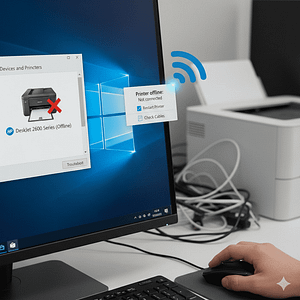
Fix Printer Offline Issue, if your printer suddenly stops working and shows the Printer is Offline Windows 10 error, you’re not alone. This is one of the most common issues Windows users face. The good news?
Whether your printer is connected via USB or Wi-Fi, the methods below will work for all major brands including HP, Canon, Brother, and Epson. Seeing your printer marked as “offline” in Windows 10 can be frustrating—especially when you need to print important documents urgently. Even when your printer is properly connected, Windows may still show it as offline due to configuration errors, driver issues, or network problems.
The good news is that this issue is very common and can be fixed easily with the right approach. In this complete guide, you’ll learn why your printer shows offline status and how to fix it step-by-step using proven methods.
What Does “Printer Offline” Mean?
When a printer shows as offline, it means your computer is unable to communicate with the printer. This can happen even if the printer is turned on and connected:
Common Reasons Include:
- Loose or disconnected cables
- Wi-Fi or network issues
- Incorrect printer settings
- Outdated or corrupted drivers
- Print spooler service errors
Signs Your Printer Is Offline
You may notice the following:
- Print jobs stuck in queue
- Error message “Printer Offline”
- Printer not responding
- Documents not printing
Why Does the Fix Printer Offline Issues Windows Error Occur?
Windows shows the Printer Offline Windows 10 error when your computer cannot communicate with the printer. We have to fix printer offline issues
Common reasons include:
-
- Wrong printer settings
- Outdated or corrupt drivers
- Wi-Fi disconnection
- Loose USB cable
- Printer spooler issues
- Network configuration errors
- Windows 10 update conflicts
- Identifying the cause helps fix the problem faster.
Quick Fix Checklist (Try First)
Before going into advanced steps, try these simple fix printer offline issue:
- Restart your printer and computer
- Check all cable connections
- Ensure Wi-Fi is connected
- Set your printer as default
Method 1: Set Printer as Default
Sometimes Windows selects another printer as default, causing offline issues, need to fix printer offline issue,
Steps:
- Open Settings
- Go to Devices > Printers & Scanners
- Select your printer
- Click Manage
- Click Set as Default
Method 2: Turn Off the “Use Printer Offline” Setting
Windows may automatically turn this option ON.
Steps to fix it:
- Open Control Panel
- Click Devices and Printers
- Right-click your printer
- Click See what’s printing
- Click Printer menu
- Uncheck Use Printer Offline
3. Restart the Print Spooler Service
Print Spooler is the backbone of the Windows printing system. When it crashes, you see the Printer Offline Windows 10 error.
Restart it like this:
- Press Windows + R
- Type services.msc
- Find Print Spooler
- Right-click → Restart
Advanced Fix:
- Stop the spooler
- Delete files from: C:\Windows\System32\spool\PRINTERS
- Restart the spooler
Method 4. Reconnect Your Wireless Printer
If you are using a Wi-Fi printer, reconnecting often solves the issue.
Steps:
-
- Go to the printer’s Wi-Fi menu
-
- Reconnect to your home or office network
-
- Enter the correct password
-
- Restart your printer
-
- Restart your router
-
- On PC: Settings → Devices → Printers & Scanners → Add a printer
- On PC: Settings → Devices → Printers & Scanners → Add a printer
Wireless drop is one of the biggest reasons behind Printer Offline Windows 10 problems.
Method 5. Update or Reinstall Printer Drivers
Corrupt or outdated drivers trigger the Printer Offline Windows 10 error frequently.
Steps to Update:
- Open Device Manager
- Expand Printers
- Right-click your printer
- Click Update Driver
Reinstall Driver:
- Remove printer from Settings
- Restart PC
- Download latest driver from manufacturer website
- Install again
Method 6. Remove and Add the Printer Again
A stuck print job can cause offline status.
Steps:
- Go to Printers & Scanners
- Select printer → Open Queue
- Cancel all documents
Method 7: Run Windows Troubleshooter
Windows has a built-in tool to fix printer problems.
Steps:
- Open Settings
- Go to Update & Security
- Click Troubleshoot
- Select Printer
- Run the troubleshooter
Method 8: Check Printer IP Address
For network printers, incorrect IP can cause offline issues.
Steps:
- Print network configuration page
- Note IP address
- Re-add printer using correct IP
Method 9: Disable SNMP Status
Sometimes SNMP settings cause offline errors.
Steps:
- Open Control Panel > Devices and Printers
- Right-click printer → Properties
- Go to Ports tab
- Click Configure Port
- Uncheck SNMP Status Enabled
Method 10: Remove and Reinstall Printer
If nothing works, reinstalling is the best option.
Steps:
- Go to Settings > Printers & Scanners
- Remove printer
- Restart system
- Add printer again
Advanced Troubleshooting Tips
1. Check Firewall Settings
Firewall may block printer communication.
2. Update Windows
Outdated system may cause compatibility issues.
3. Use Manufacturer Tools
Printer brands offer diagnostic tools for fixing issues.
How to Prevent Printer Offline Issues
- Keep drivers updated
- Use stable network connection
- Avoid multiple pending print jobs
- Turn off printer properly
- Regularly restart devices
Benefits of Fix Printer Offline Issue
- Faster printing
- No delays in work
- Better device performance
- Reduced frustration
When to Seek Professional Help
You may need expert support if you want to fix Printer offline issue:
- Printer goes offline repeatedly
- Driver installation fails
- Network printer not accessible
- Hardware issues suspected
Need Expert Help? Contact WinTech Support
If you’ve tried all the solutions and your printer is still showing offline in Windows 10, it may be time to get expert assistance. WinTech Support offers reliable and fast technical help for all types of printer issues, including offline errors, driver installation problems, and network connectivity issues. Our experienced technicians provide step-by-step guidance to diagnose and fix the problem efficiently, ensuring your printer is back online without delay.
Whether you’re using a USB, wireless, or network printer, WinTech Support fix printer offline issue delivers tailored solutions for both home users and businesses. We focus on quick resolution, minimal downtime, and long-term fixes so you don’t face the same issue again. Get professional support today and enjoy smooth, hassle-free printing on your Windows 10 system.
Frequently Asked Question (FAQs)
Q1. Why does my printer keep going offline?
It could be due to network issues, outdated drivers, or incorrect settings.
Q2. How do I bring my printer back online?
Disable offline mode, restart spooler, and check connections.
Q3. Can Wi-Fi cause printer offline issue?
Yes, unstable or disconnected Wi-Fi can cause this problem.
Q4. Should I reinstall printer drivers?
Yes, if updating doesn’t fix the issue.
Q5. How often should I update drivers?
Check for updates every few months or when issues arise.
Final Thoughts
Fix Printer offline issue in Windows 10 with the right steps. Whether it’s a connection problem, driver issue, or system error, following the methods in this guide will help you bring your printer back online quickly.
By maintaining your printer properly and keeping your system updated, you can avoid these issues in the future and enjoy smooth, uninterrupted printing.
The Printer Offline Windows 10 error may look frustrating, but most issues can be fixed quickly using the steps in this guide. From resetting spooler services to reinstalling drivers, each solution helps restore communication between your printer and computer.
Pingback: Top 10 Printer Troubleshooting Tips | WinTechSupport