
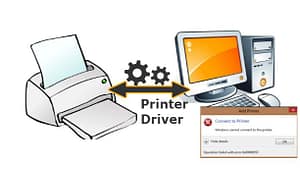
 Install printer driver on a Windows computer is the most important step to make your printer work properly. Without the correct driver, your system cannot communicate with the printer, which leads to errors, printing failures, or connection issues.
Printer drivers are essential software that allow your computer to communicate with your printer. Without the correct driver installed, your printer may not function properly or may not work at all. Whether you are setting up a new printer or fixing an existing one, installing the right printer driver is a crucial step.
In this detailed guide, you will learn how to install printer drivers in Windows using different methods. We will also cover troubleshooting tips, common errors, and best practices to ensure smooth and efficient printing.
In this guide, WinTechSupport — the best technology customer support — explains how to install printer driver safely and correctly.
What Is a Printer Driver?
A printer driver is a software program that acts as a bridge between your computer and the printer. It converts the data from your system into a format that the printer can understand.
Why Printer Drivers Are Important:
- Enable communication between system and printer
- Ensure correct printing format and quality
- Provide access to advanced features
- Prevent errors and compatibility issues
Types of Printer Drivers
Understanding driver types can help you choose the right one.
1. Manufacturer Drivers
These are provided by brands like HP, Canon, and Epson and offer full functionality.
2. Generic Drivers
Basic drivers provided by Windows for simple printing tasks.
3. PostScript Drivers
Used for high-quality graphics and professional printing.
Why Installing the Correct Printer Driver Matters
A printer driver works as a bridge between your Windows computer and your printer. Without it, your device may show problems like:
-
- Printer not responding
-
- Blank pages printing
-
- Printer showing offline
-
- USB or wireless connection not working
-
- Frequent error pop-ups
Correct drivers ensure smooth communication and reliable performance.
How to Install Printer Driver on a Windows Computer (Step-by-Step Instructions)
Follow these simple steps to complete install printer driver without errors.
Method 1: Automatic Installation via Windows Update
This is the easiest method.
Steps:
- Connect your printer to your computer
- Turn on the printer
- Go to Settings > Devices > Printers & Scanners
- Click Add a printer or scanner
- Windows will detect the printer
- Install driver automatically
Advantages:
- Quick and easy
- No manual download required
- Safe and reliable
Method 2: Install Driver from Manufacturer Website
Recommended for best performance.
Steps:
- Visit the official website of your printer brand
- Search for your printer model
- Download the latest driver for your Windows version
- Run the setup file
- Follow on-screen instructions
Tips:
- Always download from official sources
- Choose the correct OS version (32-bit/64-bit)
Method 3: Install Printer Driver Manually
If automatic installation fails:
Steps:
- Open Control Panel
- Click Devices and Printers
- Select Add a printer
- Click The printer that I want isn’t listed
- Choose Add a local printer
- Select port
- Click Have Disk
- Browse driver file and install
Method 4: Install Driver Using Device Manager
Steps:
- Open Device Manager
- Locate your printer
- Right-click → Update driver
- Select Browse my computer
- Choose driver file
Method 5: Install Driver via CD/DVD (Old Method)
Some printers come with installation discs.
Steps:
- Insert CD/DVD
- Run setup file
- Follow instructions
Method 6. Fix Common Printer Driver Installation Issues
If you still face issues such as “driver unavailable,” “printer not detected,” or “printer offline,” try these fixes:
-
- Restart the printer
-
- Reconnect USB cable or Wi-Fi
-
- Remove old driver files
-
- Restart the Print Spooler service
-
- Download the latest driver version
-
- Add the printer again through Windows settings
How to Check If Driver Is Installed Correctly
Steps:
- Go to Printers & Scanners
- Select your printer
- Click Manage
- Print a test page
Common Printer Driver Installation Errors & Fixes
1. Driver Not Installing
Fix:
- Download correct version
- Run as administrator
- Disable antivirus temporarily
2. Printer Not Detected
Fix:
- Check connection
- Restart devices
- Use manual installation
3. Driver Compatibility Issues
Fix:
- Use compatibility mode
- Install older version
- Update Windows
4. Installation Stuck or Failed
Fix:
- Restart system
- Clear temporary files
- Try reinstalling
How to Update Printer Drivers
Keeping drivers updated improves performance.
Steps:
- Open Device Manager
- Right-click printer
- Click Update Driver
- Select automatic update
How to Uninstall and Reinstall Printer Driver
Steps:
- Go to Device Manager
- Right-click printer → Uninstall
- Restart PC
- Install latest driver
Benefits of Installing Correct Printer Driver
- Better print quality
- Faster performance
- Fewer errors
- Access to full features
- Improved compatibility
Tips for Smooth Driver Installation
- Always use official drivers
- Keep Windows updated
- Use stable internet connection
- Restart system after installation
- Avoid multiple driver versions
Advanced Tips (For Professionals)
- Use IP-based installation for network printers
- Configure driver settings manually
- Use manufacturer tools for diagnostics
- Check system logs for errors
When to Seek Technical Support
You may need expert help if:
- Driver installation fails repeatedly
- Printer is not recognized
- System errors occur
- Network printer issues persist
Need Help Installing Printer Drivers? Contact WinTech Support
Installing printer drivers can sometimes be confusing, especially when you face issues like driver compatibility errors, installation failures, or printers not being detected by your system. If you’re struggling with any of these problems, WinTech Support is here to help.
WinTech Support provides reliable and efficient technical assistance for printer driver installation, updates, and troubleshooting. Whether you are setting up a new printer or fixing an existing one, our experienced technicians guide you through the entire process to ensure your printer works smoothly with your Windows system.
FAQs
1. Can I install printer driver without a CD?
Yes. Almost all printer brands offer online driver downloads.
2. Why is my printer not showing up on my computer?
It may be due to a loose cable, Wi-Fi disconnect, outdated driver, or Windows not recognizing the device.
3. Where should I download safe printer drivers?
Always download directly from official manufacturer websites.
4. How do I check if the driver is installed correctly?
Your printer will appear in Printers & Scanners, and printing will start without delay.
5. Can WinTechSupport help with printer driver setup?
Yes! WinTechSupport provides instant, reliable support for driver installation and troubleshooting.
Conclusion
Install printer driver on a Windows computer becomes easy when you follow the correct steps. From downloading the right driver to adding the printer in Windows settings, each step ensures flawless printing.
Install printer driver is a simple but essential task for ensuring smooth printing operations. Whether you use automatic installation, manual setup, or manufacturer software, choosing the right method is important.
By following this complete guide, you can install, update, and troubleshoot printer drivers effectively. Keeping your drivers updated and properly configured will help you avoid common issues and improve overall performance.