
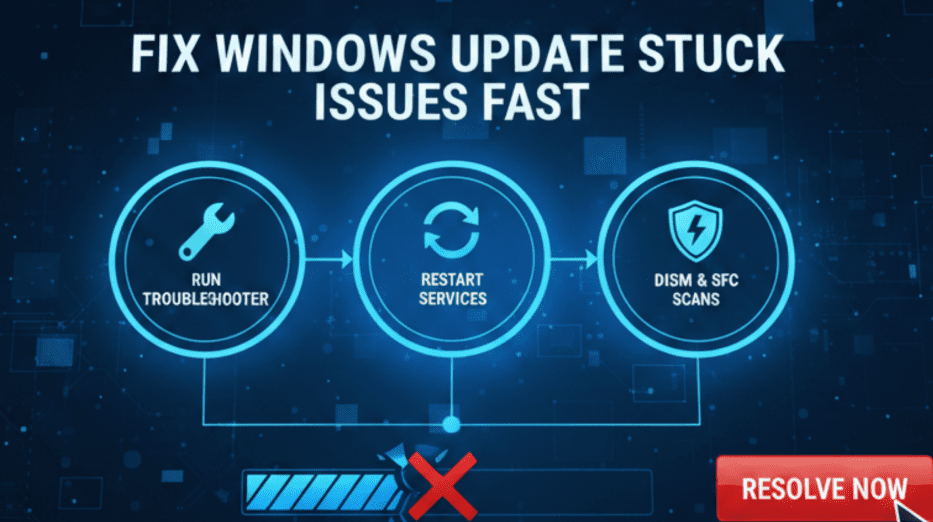
Windows Update Stuck: How to Fix Windows 10 & 11 Update Problems
Windows updates are essential for security, performance, and system stability. But sometimes, the process doesn’t go smoothly. Your PC may freeze at a certain percentage, show “Installing updates…” for hours, or restart repeatedly without finishing. If your windows update stuck issue is interrupting your work, you’re not alone—this is one of the most common problems Windows users face.
In this guide, the best technical support company, explains why updates get stuck and how to fix the problem safely in Windows 10 and Windows 11.
Why Windows Updates Get Stuck
There are several reasons why an update may fail to install or freeze during the process:
- Slow or unstable internet connection
- Corrupted update files
- Insufficient disk space
- Conflicts with drivers or software
- Damaged system files
- Interrupted updates due to shutdown or power cut
- Overloaded Windows Update servers
Identifying the cause helps prevent the issue from happening again in the future.
1. Wait for Some Time Before Taking Action
Sometimes the update is not actually stuck—it’s just taking longer than usual. Complex updates, especially feature upgrades, may take 30–90 minutes to complete. If your disk light is blinking, Windows is still working.
But if it’s been stuck for more than 2 hours at the same percentage, move to the next steps.
2. Restart Your PC and Try Again
If the update screen is frozen for too long:
- Hold the Power button
- Turn the PC off
- Restart normally
Windows will usually roll back the failed update and allow you to try again.
Once restarted, go to:
Settings → Windows Update → Check for updates
3. Run the Windows Update Troubleshooter
Windows 10 and 11 have built-in tools to fix update-related problems.
Go to:
Settings → System → Troubleshoot → Other troubleshooters → Windows Update → Run
This tool resets update components that can fix the windows update stuck issue without affecting your data.
4. Free Up Storage Space
Windows needs enough disk space to download and install updates. If your system drive is full, update installation may stop midway.
Quick ways to free space:
- Empty Recycle Bin
- Delete temporary files
- Uninstall unused apps
- Move large files to another drive
5. Reset Windows Update Components Manually
Corrupted update files can cause update installation to freeze. Resetting the update system helps fix it.
Open Command Prompt (Admin) and run:
net stop wuauserv
net stop bits
net stop cryptsvc
ren C:\Windows\SoftwareDistribution SoftwareDistribution.old
ren C:\Windows\System32\catroot2 catroot2.old
net start wuauserv
net start bits
net start cryptsvc
This forces Windows to rebuild update components from scratch.
6. Update Drivers Before Installing Windows Updates
Outdated or incompatible drivers can conflict with updates—especially graphics and network drivers.
Go to Device Manager → Update drivers → Restart your PC.
7. Use System File Checker (SFC) and DISM Tools
Damaged system files can cause updates to fail. Run the following commands:
SFC scan:
sfc /scannow
DISM repair:
DISM /Online /Cleanup-Image /RestoreHealth
These tools fix internal system errors that may stop updates from installing properly.
FAQs
1. Why do Windows updates freeze during installation?
Updates freeze due to corrupted files, slow internet, insufficient disk space, or system conflicts.
2. How long should I wait if my update is stuck?
Wait at least 1–2 hours unless it’s completely frozen.
3. Is it safe to restart my PC during a stuck update?
Yes, if the update has been stuck for a long time. Windows will roll back changes.
4. How do I know if my storage is affecting updates?
If your C: drive has less than 10GB free, updates may fail.