
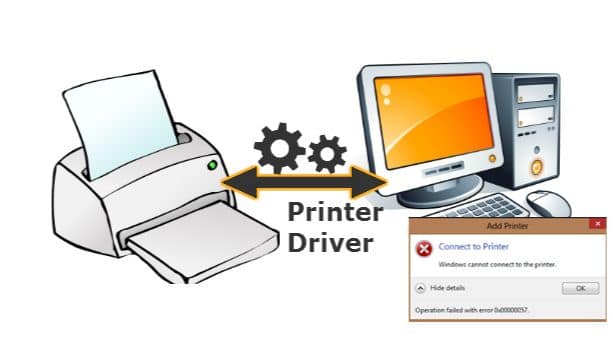
 Installing printer driver on a Windows computer is the most important step to make your printer work properly. Without the correct driver, your system cannot communicate with the printer, which leads to errors, printing failures, or connection issues.
In this guide, WinTechSupport — the best technology customer support — explains how to install printer driver safely and correctly.
Why Installing the Correct Printer Driver Matters
A printer driver works as a bridge between your Windows computer and your printer. Without it, your device may show problems like:
-
- Printer not responding
-
- Blank pages printing
-
- Printer showing offline
-
- USB or wireless connection not working
-
- Frequent error pop-ups
Correct drivers ensure smooth communication and reliable performance.
How to Install Printer Driver on a Windows Computer (Step-by-Step Instructions)
Follow these simple steps to complete your installation without errors.
1. Identify Your Printer Model Number
Every printer model has a specific driver. A wrong model number can lead to failed installation or incompatible drivers.
You can find the model number:
-
- On the front or back label of the printer
-
- On the box or manual
-
- In the printer’s control panel menu
Always double-check before downloading.
2. Download the Driver From the Official Website
The safest and most reliable way to install printer driver is through the manufacturer’s official support website.
Visit the support page for:
-
- HP
-
- Canon
-
- Brother
-
- Epson
Steps:
-
- Enter your printer model
-
- Select Windows as your operating system
-
- Download the recommended driver file
Avoid third-party download sites — they may include outdated or harmful files.
3. Install the Printer Driver Manually
After downloading:
-
- Open the file ending in .exe
-
- Click Run
- Click Run
-
- Accept the terms and conditions
-
- Choose how you want to connect the printer:
-
- USB
-
- Wireless
-
- Choose how you want to connect the printer:
-
- Follow the instructions shown on the screen
-
- Restart your computer after installation
Restarting helps complete the setup successfully.
4. Add Your Printer Using Windows Settings
If your printer doesn’t appear automatically, you can add it manually:
-
- Open Settings
- Open Settings
-
- Click Devices
- Click Devices
-
- Go to Printers & Scanners
- Go to Printers & Scanners
-
- Select Add a Printer or Scanner
- Select Add a Printer or Scanner
-
- Choose your printer from the list
This ensures your Windows computer recognizes the newly installed driver.
5. Install Missing Drivers Through Windows Update
If your driver is still not working:
-
- Go to Settings
- Go to Settings
-
- Click Update & Security
- Click Update & Security
-
- Select Check for Updates
- Select Check for Updates
Windows may download additional printer components to complete the setup.
6. Fix Common Printer Driver Installation Issues
If you still face issues such as “driver unavailable,” “printer not detected,” or “printer offline,” try these fixes:
-
- Restart the printer
-
- Reconnect USB cable or Wi-Fi
-
- Remove old driver files
-
- Restart the Print Spooler service
-
- Download the latest driver version
-
- Add the printer again through Windows settings
If nothing works, WinTechSupport experts can fix the issue instantly through remote help.
- Add the printer again through Windows settings
FAQs
1. Can I install printer driver without a CD?
Yes. Almost all printer brands offer online driver downloads.
2. Why is my printer not showing up on my computer?
It may be due to a loose cable, Wi-Fi disconnect, outdated driver, or Windows not recognizing the device.
3. Where should I download safe printer drivers?
Always download directly from official manufacturer websites.
4. How do I check if the driver is installed correctly?
Your printer will appear in Printers & Scanners, and printing will start without delay.
5. Can WinTechSupport help with printer driver setup?
Yes! WinTechSupport provides instant, reliable support for driver installation and troubleshooting.
Conclusion
Installing a printer driver on a Windows computer becomes easy when you follow the correct steps. From downloading the right driver to adding the printer in Windows settings, each step ensures flawless printing. If any issues continue, WinTechSupport is always ready to assist with expert remote support.
Contact WinTechSupport today for fast, affordable, and professional printer driver installation assistance.