
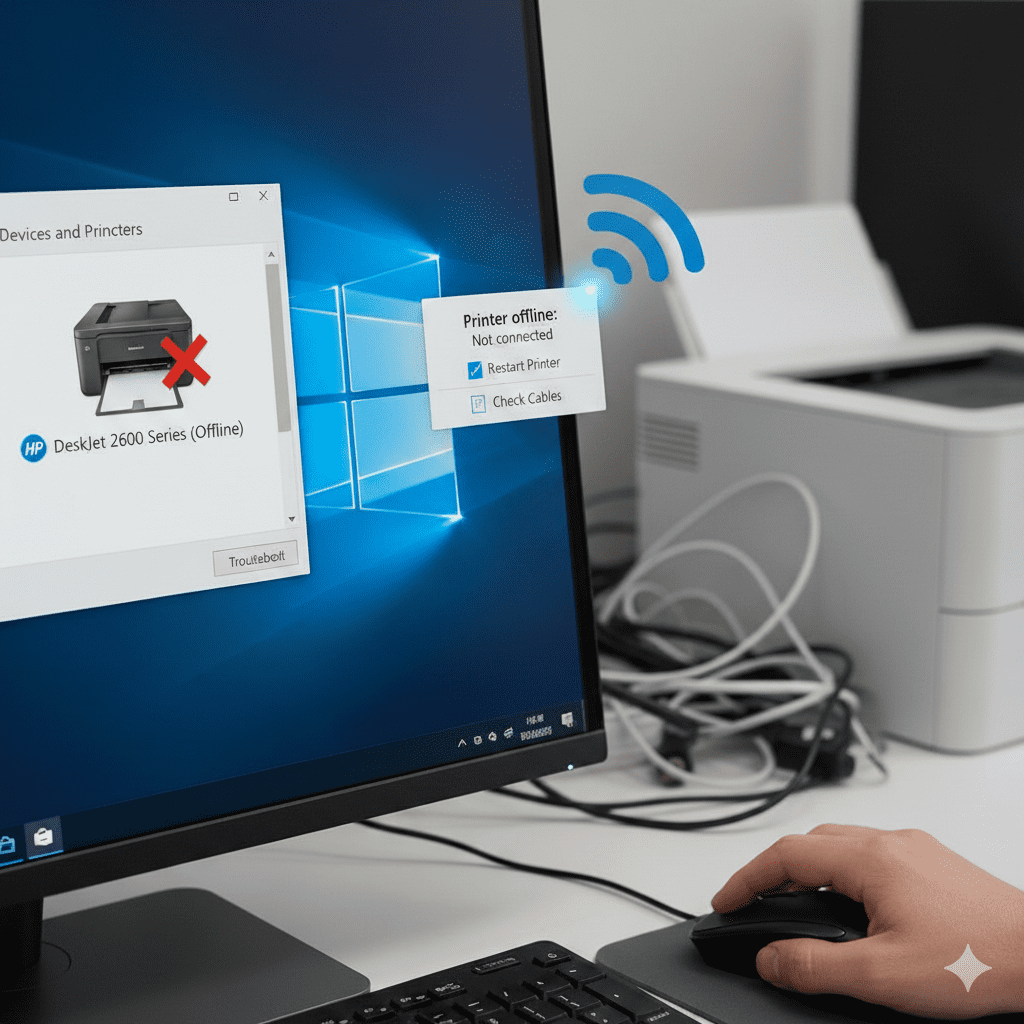
If your printer suddenly stops working and shows the Printer is Offline Windows 10 error, you’re not alone. This is one of the most common issues Windows users face. The good news? It’s completely fixable. In this comprehensive guide, WinTechSupport — the best technology customer support— explains the exact steps to bring your printer back online quickly.
Whether your printer is connected via USB or Wi-Fi, the methods below will work for all major brands including HP, Canon, Brother, and Epson.
Why Does the Printer Offline Windows 10 Error Occur?
Windows shows the Printer Offline Windows 10 error when your computer cannot communicate with the printer.
Common reasons include:
-
- Wrong printer settings
-
- Outdated or corrupt drivers
-
- Wi-Fi disconnection
-
- Loose USB cable
-
- Printer spooler issues
-
- Network configuration errors
-
- Windows 10 update conflicts
Identifying the cause helps fix the problem faster.
1. Check Printer Power & Connection
Start with the basics:
-
- Is your printer switched ON?
-
- Is the USB cable plugged properly?
-
- Is your printer connected to the correct Wi-Fi network?
-
- Any blinking or error lights?
-
- Any paper jam?
A small connection issue can cause the Printer Offline Windows 10 message instantly.
2. Turn Off the “Use Printer Offline” Setting
Windows may automatically turn this option ON.
Steps to fix it:
-
- Go to Control Panel
- Go to Control Panel
-
- Open Devices and Printers
- Open Devices and Printers
-
- Right-click your printer
-
- Select See what’s printing
- Select See what’s printing
-
- Click Printer from the menu
-
- Uncheck Use Printer Offline
- Uncheck Use Printer Offline
Try printing again — most users report the issue gets solved here.
3. Restart the Print Spooler Service
Print Spooler is the backbone of the Windows printing system. When it crashes, you see the Printer Offline Windows 10 error.
Restart it like this:
-
- Press Win + R
- Press Win + R
-
- Type services.msc
- Type services.msc
-
- Scroll down to Print Spooler
- Scroll down to Print Spooler
-
- Right-click → Restart
- Right-click → Restart
This refreshes all print tasks.
4. Reconnect Your Wireless Printer
If you are using a Wi-Fi printer, reconnecting often solves the issue.
Steps:
-
- Go to the printer’s Wi-Fi menu
-
- Reconnect to your home or office network
-
- Enter the correct password
-
- Restart your printer
-
- Restart your router
-
- On PC: Settings → Devices → Printers & Scanners → Add a printer
- On PC: Settings → Devices → Printers & Scanners → Add a printer
Wireless drop is one of the biggest reasons behind Printer Offline Windows 10 problems.
5. Update or Reinstall Printer Drivers
Corrupt or outdated drivers trigger the Printer Offline Windows 10 error frequently.
Fix this by:
-
- Visiting your printer brand’s official website
-
- Searching your exact model
-
- Downloading the latest Windows 10 printer driver
- Downloading the latest Windows 10 printer driver
-
- Installing the driver
-
- Restarting your PC
Better drivers = smoother performance.
6. Remove and Add the Printer Again
Steps:
-
- Go to Settings
- Go to Settings
-
- Open Devices
- Open Devices
-
- Click Printers & Scanners
- Click Printers & Scanners
-
- Select your printer → Remove Device
- Select your printer → Remove Device
-
- Click Add a Printer or Scanner
- Click Add a Printer or Scanner
-
- Re-add your printer
This resets the connection and fixes hidden configuration errors.
7. Set Your Printer as Default
Windows may switch to another printer automatically.
Fix it by right-clicking your printer and selecting Set as Default Printer.
8. Run the Built-in Windows Troubleshooter
Steps:
-
- Go to Settings
- Go to Settings
-
- Select Update & Security
- Select Update & Security
-
- Click Troubleshoot
- Click Troubleshoot
-
- Choose Printer
- Choose Printer
-
- Run the troubleshooter
Windows automatically detects and repairs the Printer Offline Windows 10 problem.
9. Restart Devices (Simple but Effective)
-
- Restart your printer
-
- Restart your PC
-
- Restart your Wi-Fi router
A complete device refresh solves hidden glitches.
10. Still Stuck? WinTechSupport Can Fix It Remotely
If none of the above steps resolve the Printer Offline Windows 10 error, it may be due to:
-
- Deep driver corruption
-
- Faulty Windows settings
-
- Firmware issues
-
- Network misconfiguration
-
- Print spooler registry damage
WinTechSupport experts can fix your printer online within minutes through safe and secure remote assistance.
Final Thoughts
The Printer Offline Windows 10 error may look frustrating, but most issues can be fixed quickly using the steps in this guide. From resetting spooler services to reinstalling drivers, each solution helps restore communication between your printer and computer.
Contact WinTechSupport
Still facing the Printer Offline Windows 10 issue?
Contact WinTechSupport for quick, affordable, and reliable printer support.
Our experts will bring your printer back online in minutes!