
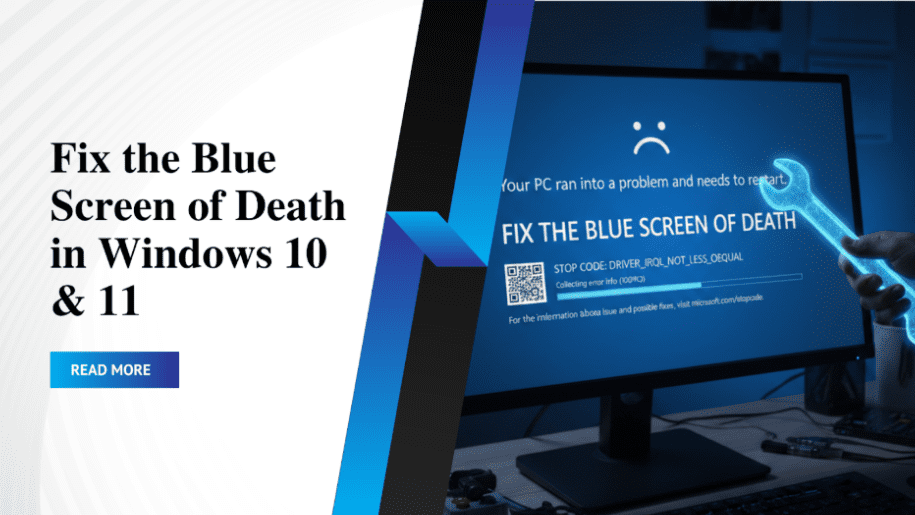
Blue Screen of Death (BSOD): How to Fix the Blue Screen of Death on Windows 10 and 11
The Blue Screen of Death (BSOD) is one of the most frustrating errors Windows users can face. Suddenly, your system crashes, shows a blue screen with an error code, and restarts—often without warning. Whether you’re using Windows 10 or Windows 11, a BSOD error can interrupt work, risk data loss, and indicate deeper system issues.
In this detailed guide, you’ll learn why the Blue Screen of Death occurs and how to fix it step by step using proven methods and reliable online computer support when required.
What Is the Blue Screen of Death (BSOD)?
The Blue Screen of Death is a critical Windows error that occurs when the operating system encounters a problem it cannot safely recover from. This forces Windows to shut down or restart to prevent further damage. Common BSOD error messages include IRQL_NOT_LESS_OR_EQUAL, CRITICAL_PROCESS_DIED, and MEMORY_MANAGEMENT.
These errors are usually related to hardware failures, corrupted drivers, system file errors, or malware infections.
Blue Screen of Death: Common Causes in Windows 10 and 11
Understanding the cause is key to fixing the Blue Screen of Death. Some common reasons include:
- Outdated or incompatible device drivers
- Corrupted Windows system files
- Faulty RAM or hard drive issues
- Overheating or hardware failure
- Malware or virus attacks
- Failed Windows updates
How to Fix the Blue Screen of Death on Windows 10 and 11
1. Restart Your Computer in Safe Mode
Safe Mode loads Windows with minimal drivers. If the BSOD doesn’t appear in Safe Mode, the issue is likely caused by a third-party driver or software.
2. Update or Roll Back Drivers
Outdated drivers are a major cause of BSOD errors. Go to Device Manager and update drivers—especially for graphics, network, and storage devices. If the problem started after a recent update, roll back the driver.
3. Run Windows System File Checker (SFC)
Corrupted system files can trigger a Blue Screen of Death. Run the command:
SFC /scannow
This scans and repairs damaged Windows files.
4. Check for Windows Updates
Microsoft regularly releases fixes for system bugs. Keeping Windows 10 or Windows 11 updated can resolve recurring BSOD issues.
5. Scan for Malware
Malicious software can corrupt system processes and cause blue screen errors. Run a full system scan using a reliable antivirus program.
6. Test Hardware Components
Faulty RAM or hard drives are common BSOD causes. Use Windows Memory Diagnostic and disk check tools to identify hardware problems.
7. Seek Professional Technical Support
If the Blue Screen of Death keeps returning despite basic fixes, professional help is the safest option. Certified technicians can accurately diagnose driver conflicts, system corruption, or hardware failures and resolve them remotely without risking your data.
Why Online Computer Support Is Recommended for BSOD Issues
Recurring BSOD errors often require advanced troubleshooting. Reliable online computer support offers:
- Expert BSOD error diagnosis
- Windows 10 and 11 troubleshooting
- Driver, system file, and hardware optimization
- Fast remote support with guaranteed solutions
- Data safety and privacy assurance
Professional diagnosis prevents permanent system damage and unnecessary reinstallations.
FAQs About Blue Screen of Death
1. What is the main reason for the Blue Screen of Death?
The most common reason is driver failure, followed by corrupted system files and hardware issues like RAM or hard disk errors.
2. Can the Blue Screen of Death damage my computer?
The BSOD itself doesn’t damage hardware, but repeated crashes may indicate serious problems that need immediate attention.
3. How do I find out what caused my BSOD error?
You can check the error code on the blue screen or use Windows Event Viewer. For accurate diagnosis, professional online computer support is recommended.
4. Does reinstalling Windows fix the Blue Screen of Death?
Sometimes yes, but it’s not always necessary. Most BSOD issues can be resolved without reinstalling Windows.
5. Who should I contact for recurring BSOD problems?
Certified technicians offering online computer support are best suited to resolve recurring BSOD issues safely and efficiently.
Final Thoughts
The Blue Screen of Death may look alarming, but with the right steps, it is completely fixable. From driver updates to advanced diagnostics, timely action can prevent bigger system failures. With expert online computer support, Windows 10 and 11 systems can be restored to stable and reliable performance.