
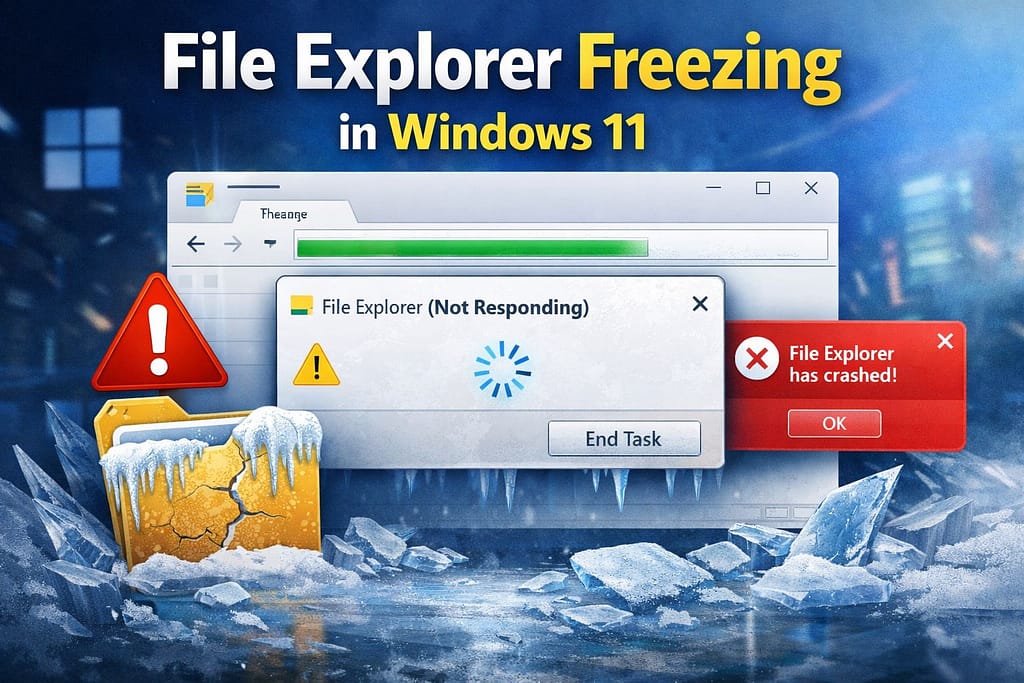
File Explorer Freezing is one of the most common problems in Windows 11 , especially after updates or long periods of use. When File Explorer freezes, it stops you from doing things like opening files, copying folders, or getting to drives. A lot of people say that File Explorer keeps freezing or crashing over and over again.
Many users have complained that File Explorer freezes randomly, and some users face the issue of frequent crashes, where File Explorer crashes Windows 11 repeatedly without any notice. In some cases, users see the “Not Responding” notification, and in some worse cases, File Explorer crashes entirely and restarts automatically. This guide will help you figure out what’s wrong with File Explorer and how to fix it step by step if you’re wondering “why does File Explorer keep crashing?”
What Is File Explorer Freezing?
If File Explorer keeps freezing, basic tasks like opening folders, searching files, or transferring data can become slow and frustrating. Sometimes, File Explorer may stop responding completely and require a restart. In more serious cases, File Explorer crashes repeatedly, which can interrupt work and affect system stability.
When File Explorer freezing Windows 11 happens frequently, it may indicate deeper issues such as corrupted system files, software conflicts, or disk errors. Ignoring the problem can lead to performance slowdowns and file access issues. That’s why it’s important to address the issue early and apply proper troubleshooting steps to keep your system running smoothly.
You might notice:
- The folder won’t open
- The green loading bar is stuck.
- Screen freezes when trying to open files
- File Explorer crashes out of the blue
This is a very common problem that causes Windows 11 systems to freeze when using File Explorer.
Why Does File Explorer Keep Crashing?
Here are the most common reasons:
- Files in the system that are broken
File Explorer may crash or freeze if Windows system files are damaged.
- Bugs or updates for Windows 11
One big reason why Windows 11 keeps crashing is because of a bad or incomplete update.
- Too Many Apps open in the Background
Heavy background apps use up RAM and cause File Explorer to freeze a lot.
- Cache or Quick Access History that is broken
If your cache files are corrupt, File Explorer may freeze when you try to open folders.
- Getting a virus or malware
Malicious software can mess up system processes, which can make File Explorer crash.
How File Explorer Freezing Affects System Performance
When File Explorer freezing happens frequently, it does not only slow down file access but also affects overall system performance. Many users notice that when File Explorer keeps freezing, the entire system becomes sluggish. Programs take longer to open, copy-paste operations fail, and sometimes Windows stops responding completely.
In Windows 11, File Explorer is deeply connected with system services. This is why File Explorer freezing Windows 11 can also cause high CPU or disk usage in the background. Over time, repeated File Explorer crashes may lead to corrupted user profiles or damaged system settings.
Ignoring the problem for too long can increase the risk of data loss, especially when files are being transferred. That is why it is important to understand why does File Explorer keep crashing and fix it as early as possible.
Common Symptoms of File Explorer Crashing
- File Explorer opens but doesn’t do anything
- Folders crash a lot when you browse them
- Explorer restarts on its own
- Loading files slowly
- Explorer not working and system lagging
If these sound like your problem, then you definitely have a problem with File Explorer freezes.
How to Fix File Explorer Freezing in Windows 11
Take these remedies one by one:
Fix 1: Restart File Explorer
- Press Ctrl + Shift + Esc
- Open Task Manager
- Right-click File Explorer
- Click Restart
This workaround can sometimes help if File Explorer locks up for a brief moment.
Fix 2: Clear File Explorer Cache
- Open File Explorer Options
- Go to General
- Under Privacy Section, click Clear
This is helpful if File Explorer repeatedly freezes because it has damaged history.
Fix 3: Run System File Checker
Open Command Prompt with administrative privileges, then type the command below and press Enter:
sfc /scannow
This solves some files that get corrupted and lead to File Explorer crashes.
Fix 4: Update Windows 11
- Navigate to Settings → Windows Update
- Install pending updates
Updates have fixed a number of issues with File Explorer freezes in Windows 11.
Fix 5: Look for Malware
Use Windows Security or a reliable antivirus program to perform a thorough system checkup. Train Explorer keeps crashing due to malware.
Fix 6: Turn off unnecessary incipiency apps
Train Discoverer freezes are avoided and system performance is enhanced by lowering incipiency cargo.
Fix 7: Check Disk for Errors
Disk errors are a hidden reason why File Explorer keeps freezing.
Steps:
- Open Command Prompt as administrator
- Run disk check command
- Restart your system if prompted
This method helps when my File Explorer keeps freezing while opening drives or folders.
If the above solutions don’t resolve the issue and File Explorer keeps freezing or crashing, you can visit WinTech Support for expert troubleshooting and reliable Windows support solutions.
What Happens If File Explorer Keeps Crashing?
Frequent crashes can also slow down overall system performance. Background processes may consume more CPU or disk resources, leading to lag and unresponsiveness. If the issue continues, repeated File Explorer crashes may result in corrupted file access, failed transfers, or incomplete operations.
In Windows 11, persistent crashes can indicate deeper problems such as damaged system files, software conflicts, or storage errors. Ignoring the issue for a long time may increase the risk of data loss and system instability, which is why fixing File Explorer crashes early is highly recommended.
If despite fixes, File Explorer continues to crash Windows 11:
- Make a fresh user profile.
- Do cleaning boot.
- Windows reset (option)
When deep system conflicts causes File Explorer to crashes, these steps can help.
Frequently Asked Questions (FAQs)
1. Why does File Explorer keep crashing?
The primary causes are malware, corrupt system files, faulty updates, or low system resources.
2.Why does Windows 11’s File Explorer keep freezing?
Freezing is frequently caused by Windows 11 updates, cache problems, or incompatible software.
3.Is freezing in File Explorer a major issue?
Ignoring it may result in unstable systems and problems accessing data.
4.Can low RAM cause File Explorer freezes?
Yes. Insufficient memory can cause File Explorer freezes, especially when opening large folders.
5.Does Windows 11 update fix File Explorer crashing?
In many cases, yes. Microsoft releases updates to fix bugs related to File Explorer freezing Windows 11.
6.Is resetting Windows the only solution?
No. Resetting Windows should be the last option if File Explorer keeps crashing after all fixes.
Conclusion
Freezing and crashing issues in File Explorer for Windows 11 can be quite problematic in terms of productivity, but the bright side is that most of these issues can be resolved. Whether it is File Explorer freezing occasionally Windows 11, the underlying reason is mostly associated with system errors, outdated updates, cache files, or software conflicts. Regular system maintenance plays a key role in preventing File Explorer freezing issues. Keeping Windows updated, avoiding unnecessary software installations, and regularly scanning for malware can reduce the chances of File Explorer crashes in the future.
By following the troubleshooting steps discussed in this guide—such as restarting File Explorer, clearing cache, repairing system files, updating Windows, and scanning for malware—you can resolve most File Explorer crashes without needing advanced technical skills. Regular system maintenance also helps prevent situations where my File Explorer keeps freezing repeatedly.
If the issue continues, expert technical assistance might be needed.