
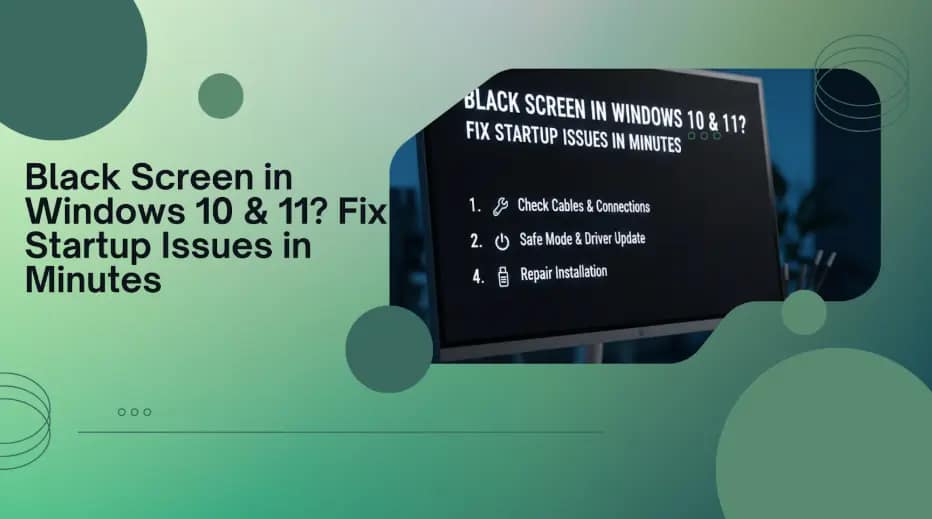
Seeing a Black Screen in Windows 10 when you start your computer can be confusing and stressful. Your system powers on, the fan is running, but the screen stays completely black—or sometimes shows only a cursor. This issue can happen in Windows 11 as well and often prevents users from accessing files, work tools, or even the desktop.
In this blog, we’ll explain why Windows gets stuck on a black screen and how you can fix it safely using proven steps and reliable online computer support when needed.
What Causes Black Screen Shows in Windows 10 & 11?
A black screen problem usually occurs due to system-level conflicts. The most common causes include:
- Corrupted display or graphics drivers
- Failed or incomplete Windows updates
- Issues with external devices
- Power or startup process errors
Understanding the root cause helps you apply the right fix instead of guessing.
How to Fix Black Screen in Windows 10 & 11
Below are proven methods that work in most cases. Follow them step by step.
Restart Windows Explorer
Sometimes, the screen turns black because Windows Explorer fails to load.
- Press Ctrl + Alt + Delete
- Open Task Manager
- Click File > Run new task
- Type explorer.exe and press Enter
This simple step can instantly bring back your desktop.
Disconnect External Devices
External monitors, USB drives, or faulty peripherals may interrupt the boot process.
- Shut down your PC
- Remove all external devices
- Restart the system
If Windows loads normally, reconnect devices one by one to identify the cause.
Boot into Safe Mode
Safe Mode loads Windows with minimal drivers.
- Enter Advanced Startup Options
- Select Troubleshoot > Advanced Options > Startup Settings
- Choose Safe Mode
Once inside Safe Mode, update or reinstall display drivers and remove recently added software.
Update or Roll Back Display Drivers
Graphics driver issues are a leading cause of Black Screen in Windows 10.
- Open Device Manager
- Expand Display adapters
- Update or roll back the driver
Restart your PC after making changes.
Run System File Checker
Corrupt system files can block Windows from loading the display properly.
- Open Command Prompt from Advanced Options
- Run:
sfc /scannow
This scan repairs damaged files automatically.
Use System Restore
If the issue started after an update or installation:
- Go to System Restore
- Select a restore point before the problem occurred
Your personal data remains safe during this process.
When Professional Online Computer Support Is Needed
When a black screen issue doesn’t resolve with basic troubleshooting, professional help is essential.
Reliable online computer support provides:
✔ Certified Windows specialists
✔ Secure remote troubleshooting
✔ No data loss assurance
✔ Quick resolution for Windows 10 & 11
✔ Trusted technical support services
Instead of risking further damage, professional diagnosis ensures the problem is fixed the right way.
If you’re also facing Windows startup issues, we recommend reading our detailed guide on fixing Windows startup and boot errors, which explains related problems and advanced solutions.
Final Words
A Black Screen in Windows 10 doesn’t always mean your system is broken. In most cases, the issue can be fixed with the right steps or expert guidance. Whether it’s a driver issue, system corruption, or update failure, timely action matters.