
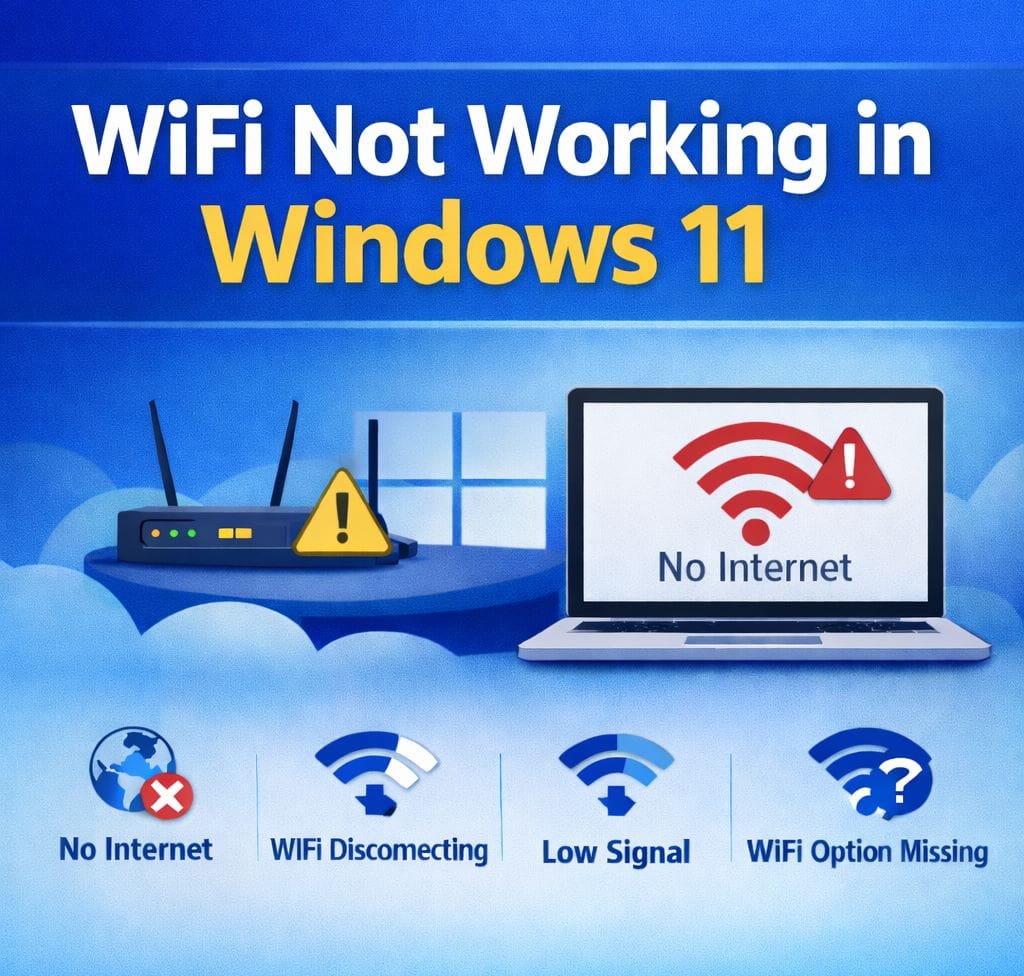
WiFi not working in Windows 11 is one of the most common issues that users encounter after upgrading or updating their Windows 11 system. If the WiFi suddenly stops working, connects but does not display the internet, or keeps disconnecting again and again, it may result in the complete disruption of online work, meetings, browsing, and downloads.
Users may encounter Windows 11 internet connection problems like WiFi not connecting, the strength of the WiFi signal being very low, or even the absence of the WiFi option in the settings. Such issues normally occur due to outdated network drivers, incorrect network settings, power management settings, or bugs in the recent Windows updates.
This blog provides a complete and step-by-step troubleshooting guide to fix WiFi not working in Windows 11. Whether your WiFi not working in windows in 11 connecting, internet is unstable, signal strength is very low, or network settings need to be reset, you will find practical and easy-to-follow solutions in this guide.
Why WiFi Not Working in Windows 11?
Windows 11 has introduced new drivers, power management policies, and improved security options. However, these updates can sometimes lead to compatibility issues with the current WiFi drivers or network settings.
The reasons for WiFi not working in Windows 11 are as follows:
- Incompatible or outdated WiFi drivers
- Incorrect network settings
- Power management options turning off WiFi
- Problems Caused by Router or ISP Connectivity
- Windows bugs after updates
Common Windows 11 Internet Connection Problems
Generally, users experience one or more of the following issues:
- WiFi not working in Windows 11
- WiFi not connecting to Windows 11
- Windows 11 WiFi Connected but Internet Not Working
- Windows 11 WiFi keeps disconnecting
- Very weak WiFi signal strength on Windows 11
- Windows 11 WiFi option is missing
- Fix WiFi Not Working After Windows 11 Update
We will resolve them one by one
Main Causes of WiFi Not Working in Windows 11
1. Outdated or Corrupted Drivers
WiFi drivers are essential for communication between hardware and Windows. If outdated or corrupted, connectivity fails.
2. Windows Update Bugs
Sometimes updates break network configurations or drivers.
3. Network Configuration Errors
Incorrect IP settings or DNS issues can block internet access.
4. Disabled WiFi Adapter
The adapter might be turned off accidentally.
5. Router or ISP Issues
Sometimes the issue is not your PC but your router or internet provider.
6. Firewall or Antivirus Blocking
Security software can block network connections.
7. Hardware Problems
Faulty WiFi card or antenna can also cause issues.
WiFi Not Connecting in Windows 11
In some cases, WiFi networks are visible but Wifi not working in Windows 11 is unable to connect to them.
Possible Reasons
- Incorrect saved WiFi password
- Temporary router glitch
- Issues with network drivers
Solutions
- Restart your router and modem
- Forget network and then connect again
- Restart your computer
- Update WiFi driver from Device Manager
WiFi Connected but No Internet in Windows 11
This issue shows WiFi as connected, but websites don’t load, and wifi not working in windows 11
Why This Happens
- DNS problems
- IP address conflict
- ISP outage
Step-by-Step Solution
- Restart your system
- Run Windows Network Troubleshooter
- Set DNS to automatic
- Try Google DNS (8.8.8.8 / 8.8.4.4)
Windows 11 WiFi Keeps Disconnecting Frequently
This is very annoying, when you doing work, but wifi not working in windows 11 and disconnecting frequently:
Common Causes
- Power saving feature disabling WiFi
- Poor WiFi reception
- Unstable drivers
Solutions
- Disable power saving feature on WiFi adapter
- Get closer to the WiFi router
- Update or reinstall WiFi drivers
Very Low WiFi Signal Strength in Windows 11
Low signal strength causes the speed to be slow and there are dropouts.
Possible Causes
- The router is located at a distance
- Physical obstructions such as walls and furniture affecting WiFi signal
- There is interference from other devices
Fix Steps
- The router should be located centrally
- The 5GHz WiFi band should be used
- The WiFi channel should be changed
- A WiFi extender should be used if needed
Hidden Causes Most Users Don’t Know
1. Network Stack Corruption
Windows uses a complex networking system. If corrupted:
- IP conflicts occur
- Internet stops working
- DNS fails
2. Faulty Windows Services
Important services include:
- WLAN AutoConfig
- Network Location Awareness
- DHCP Client
If these stop → WiFi breaks.
3. Background App Interference
Apps like VPNs, firewalls, and antivirus tools can:
- Block connections
- Modify DNS
- Interrupt network traffic
4. Band Steering Issues (2.4GHz vs 5GHz)
Routers switch between bands automatically. Sometimes:
- Device fails to connect
- Signal becomes unstable
5. Driver Compatibility Issues
Windows updates may install incompatible drivers.
WiFi Issues After Windows Update (Deep Fix)
If WiFi not working in windows 11 after update:
Solution Path:
- Roll back update
- Reinstall drivers
- Reset network
- Update chipset drivers
Fix WiFi “No Internet, Secured” Error
This is one of the most common issues.
Causes:
- DNS problem
- IP conflict
- Router issue
Fix:
- Reset network
- Change DNS
- Restart router
Why WiFi Option Is Missing
- Disabled network adapter
- Corrupt drivers
- Windows update bugs
Fix Steps
- Open Device Manager
- Enable WiFi adapter
- Reinstall WiFi driver
- Restart networking services
Fix WiFi Keeps Disconnecting
Causes:
- Power saving mode
- Weak signal
- Driver issue
Fix:
- Disable power saving
- Move closer to router
- Update drivers
Fix WiFi Not Showing in Windows 11
Causes:
- Adapter disabled
- Driver missing
- Hardware failure
Fix:
- Enable adapter
- Reinstall driver
- Check BIOS
Performance Optimization for Stable WiFi
Position Your Router Correctly
- Place in center of home
- Avoid walls and metal objects
Reduce Interference
Avoid:
- Microwaves
- Bluetooth devices
- Thick walls
Use 5GHz Band
- Faster speed
- Less interference
Upgrade Router
Old routers cause:
- Slow speed
- Frequent drops
How to Fix Network Issues by Resetting Network Settings in Windows 11
If the above troubleshooting steps do not resolve the issue, network reset is the most effective solution.
Network Reset Steps
- Open Settings
- Go to Network & Internet
- Click advanced network settings
- Select Network reset
- Restart your PC
This will delete all WiFi passwords and VPN connections.
Windows 11 WiFi Stopped Working After Update
It is common for WiFi not working in windows 11 after a Windows update.
What You Can Do
- Roll back network driver
- Uninstall recent Windows update
- Check optional driver updates
- Pause updates temporarily
Common Mistakes to Avoid
- Ignoring driver updates
- Using outdated router
- Installing unknown VPNs
- Not restarting router
- Overloading network
Future-Proofing Your WiFi
To avoid issues:
- Keep Windows updated
- Use latest drivers
- Upgrade to WiFi 6 router
- Regularly reset network
- Monitor speed and usage
Advanced Troubleshooting Tips (Recommended)
- Disable third-party antivirus temporarily
- Check BIOS WiFi settings
- Update router firmware
- Test WiFi on another device
When DIY Fixes Don’t Work
If your WiFi not working in Windows 11 even after all the troubleshooting, the problem may be:
- Hardware failure
- Deep driver conflict
- Corrupted system files
In these situations, it is best to seek the help of professionals.
Advanced Symptoms You Might Notice
Beyond basic issues, here are deeper symptoms:
- WiFi connects but shows “No Internet, Secured”
- Network disappears randomly
- Limited connectivity after sleep mode
- WiFi works only near router
- High ping or packet loss
- Certain websites not loading
When to Seek Help
- WiFi adapter not detected
- Hardware damage
- Persistent connection drops
WinTech Support provides professional Windows 11 troubleshooting services. Our experts can remotely diagnose and fix complex WiFi and network issues, ensuring a stable and secure internet connection.
Frequently Asked Questions (FAQs)
1. Why is WiFi not working in Windows 11?
WiFi not working in Windows 11 is usually caused by outdated network drivers, incorrect network settings, power management issues, or bugs after Windows updates.
2. How do I fix WiFi not connecting in Windows 11?
You can fix WiFi not connecting in Windows 11 by restarting your router and PC, forgetting and reconnecting the WiFi network, updating WiFi drivers, and running the Windows Network Troubleshooter.
3. Why does WiFi show connected but no internet in Windows 11?
This issue occurs due to DNS problems, IP address conflicts, or ISP-related issues. Resetting network settings or changing DNS can often fix it.
Why does Windows 11 WiFi keep disconnecting?
Windows 11 WiFi keeps disconnecting because of weak signal strength, power-saving settings turning off the WiFi adapter, or outdated network drivers.
What should I do if the WiFi option is missing in Windows 11?
If the WiFi option is missing, check Device Manager to enable the WiFi adapter, reinstall network drivers, and restart Windows networking services.
Conclusion
WiFi not working in Windows 11 are very common but entirely solvable. Whether you are experiencing WiFi not connecting, WiFi connected but no internet, or Windows 11 WiFi keeps disconnecting, by following the right troubleshooting procedure, you can get back to your internet in no time.
WiFi not working in Windows 11 can occur due to multiple reasons, but most of them are fixable with simple troubleshooting steps. By following this guide, you can identify the root cause and apply the right solution quickly.
Start with basic fixes like restarting your router and updating drivers, then move to advanced solutions if needed. With proper maintenance and regular updates, you can avoid such issues in the future and enjoy a seamless internet experience.
By keeping your network drivers updated, following the right power settings, and keeping your routers at the right place, you can easily avoid any internet connection problems in Windows 11.