
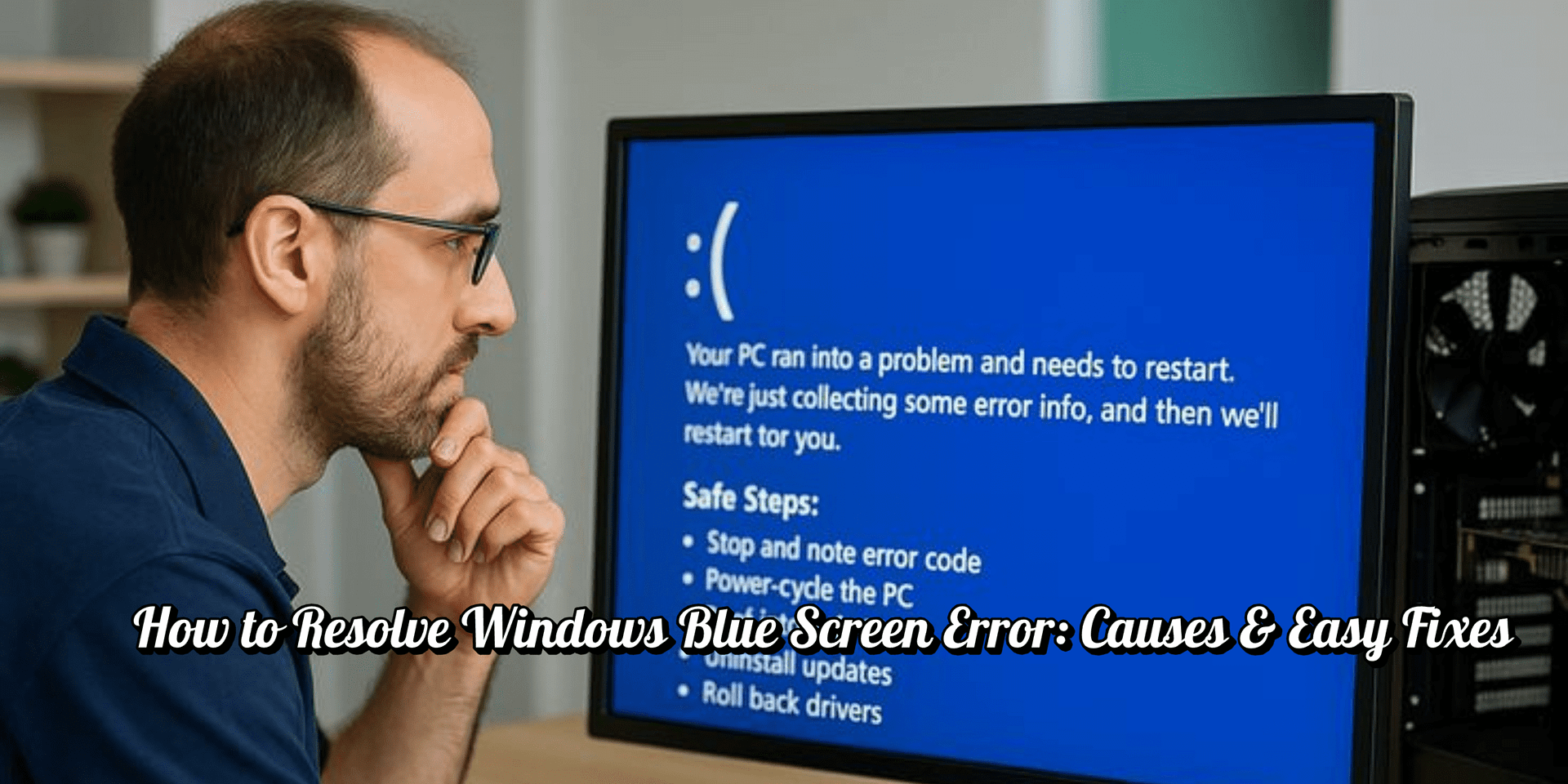
A Windows Blue Screen Error is one of the most alarming problems Windows users can face. Often called the Blue Screen of Death (BSOD), this error appears suddenly and forces the system to restart, sometimes leading to data loss and interrupted work. While it may look serious, most blue screen errors are caused by common system issues and can be fixed with the right approach.
In this blog, we’ll explain what causes Windows blue screen errors and share easy fixes to help you resolve the issue and prevent it from happening again.
Windows Blue Screen Error: Why Does It Happen?
A Windows Blue Screen Error usually occurs when the operating system encounters a critical problem it cannot recover from safely. These errors are often related to drivers, hardware conflicts, or corrupted system files.
1. Outdated or Faulty Drivers
Drivers allow Windows to communicate with hardware components. If a driver is outdated, corrupted, or incompatible, it can trigger a Windows blue screen error.
Easy Fix:
Update all system drivers, especially graphics, network, and chipset drivers. Avoid installing drivers from untrusted sources.
2. Hardware Issues or Conflicts
Faulty RAM, overheating components, or newly installed hardware can cause system instability and lead to blue screen errors.
Easy Fix:
Disconnect external devices and check if the error stops. Ensure your system hardware is properly installed and not overheating.
3. Corrupted System Files
Corrupted or missing Windows system files can prevent the operating system from functioning properly, resulting in frequent crashes.
Easy Fix:
Run built-in Windows repair tools to scan and fix corrupted system files. Keeping Windows updated also helps prevent file corruption.
4. Software or Application Conflicts
Incompatible software, recently installed programs, or security applications can conflict with system processes.
Easy Fix:
Uninstall recently added software and restart your system. Check for updates or compatibility issues with third-party applications.
5. Windows Updates Gone Wrong
Sometimes, Windows updates fail or install incorrectly, causing driver mismatches or system instability.
Easy Fix:
Roll back recent updates or reinstall the affected drivers. Resetting update components can also help resolve update-related blue screen errors.
When the Problem Keeps Returning
If the Windows Blue Screen Error appears frequently despite basic troubleshooting, it usually indicates deeper system-level problems. In such cases, expert assistance ensures accurate diagnosis and safe resolution. WinTech Support provides remote technical support services to help users fix Windows blue screen errors efficiently without the need for physical repair visits.
Users experiencing repeated system crashes may also benefit from reviewing related Windows repair and optimization solutions available through dedicated support resources on the website.
Frequently Asked Questions (FAQs)
1. What is a Windows Blue Screen Error?
It is a critical system error that occurs when Windows encounters a serious issue it cannot recover from safely.
2. Can a blue screen error damage my computer?
The error itself does not damage hardware, but repeated crashes can lead to data loss or system instability if ignored.
3. Why does my PC keep showing blue screen errors?
Common causes include faulty drivers, hardware problems, corrupted system files, or software conflicts.
4. How can I fix a Windows Blue Screen Error quickly?
Update drivers, remove recently installed software, and run system repair tools to identify the issue.
5. When should I seek professional remote support?
If blue screen errors occur frequently or you are unsure how to fix them safely, professional remote support is recommended.
Conclusion
A Windows Blue Screen Error can be frightening, but it is often caused by manageable system issues. By identifying the root cause, keeping drivers updated, and maintaining system health, most blue screen problems can be resolved. When errors persist, expert remote assistance ensures your system is repaired correctly and continues to run smoothly.