
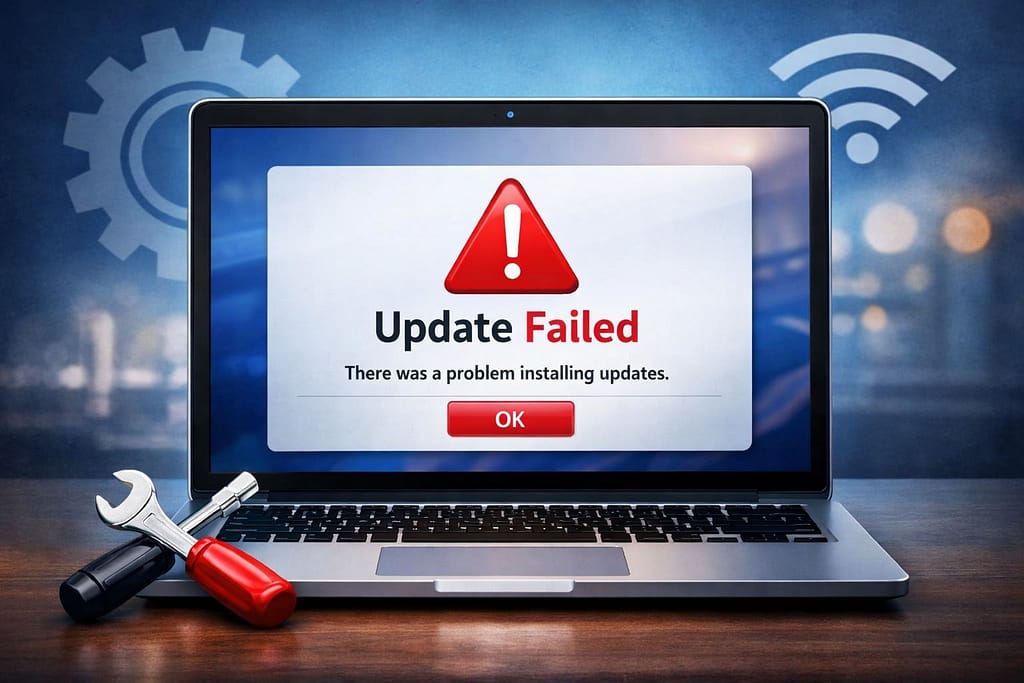
Windows 11 update problems are one of the most common problems users are facing today. Windows update problems are the issues that users encounter during the update process of the Windows operating system. Windows update problems are usually related to the update process getting stuck during the update installation. These problems might affect the performance of the Windows 11 system and might prevent users from using the latest features of the Windows 11 system.
Updating your system is essential to keep your PC secure, stable, and running efficiently. However, users of Windows 11 often encounter frustrating update-related issues. From installation failures to system crashes after updates, these problems can disrupt productivity and even lead to data loss if not handled properly.
Most users of Windows 11 are facing problems related to Windows update problems, such as the update getting stuck during the update installation process, error codes appearing during the update installation process, and update failures during the update installation process. Understanding the Windows 11 update problems will help users fix the problems quickly.
Common Windows 11 Update Problems
There are various types of issues that the user may face during the installation of system updates. The common issues faced during the installation of system updates include:
1. Windows Update Stuck at 0% or 100%
One of the most common issues is updates getting stuck during download or installation.
Symptoms:
- Update stuck at 0%, 50%, or 100%
- System freezing during update
- Endless “Working on updates” screen
2. Update Fails to Install
Sometimes, updates download successfully but fail during installation.
Error Codes Include:
- 0x80070002
- 0x800f0922
- 0x80073701
3. Slow Update Download Speed
Even with a good internet connection, updates may take hours to download.
4. System Crash After Update
Many users report:
- Blue Screen of Death (BSOD)
- Random restarts
- Apps not opening
5. Missing Files or Features
After updates, certain files or settings may disappear unexpectedly.
6. Compatibility Issues
Older hardware or drivers may not work properly after updates.
These issues may arise during the installation of system updates, and the user may face problems in the usage of the system and the installation of updates.
Possible Causes of Windows 11 Update Problems
There are several reasons for update issues in Windows systems. Understanding the cause helps in choosing the correct solution to fix the issue.
1. Corrupted Update Files
The files that the system downloads for the updates sometimes become corrupted. If the files become corrupted, the installation process does not proceed or gets stuck.
2. Unstable Internet Connection
A stable internet connection is necessary for the updates. If the connection is unstable, the updates cannot proceed.
3. Lack of Storage Space
Enough free space is necessary for the updates. If the system’s hard disk is almost full, the updates cannot proceed.
4. Outdated Drivers
Incompatible drivers may interfere with the installation of the latest system update, hence causing problems in the system stability.
5. Disabled Update Services
If the update service is disabled in the background, Windows Update would not be able to download the update.
How to Fix Windows 11 Update Problems
Here are some useful troubleshooting techniques that may help fix the update problem:
1. Restart Your Computer
A simple restart can resolve temporary glitches.
2. Run Windows Update Troubleshooter
Steps:
- Open Settings
- Go to System → Troubleshoot
- Click “Other troubleshooters”
- Run Windows Update troubleshooter
3. Check Internet Connection
Ensure:
- Stable Wi-Fi or Ethernet
- No VPN interruptions
- Router is working properly
4. Free Up Disk Space
Delete:
- Temporary files
- Recycle bin files
- Unused applications
You need at least 20–30 GB free space for smooth updates.
5. Restart Windows Update Services
Steps:
- Press
Win + R - Type
services.msc - Restart:
- Windows Update
- Background Intelligent Transfer Service
6. Clear Windows Update Cache
Steps:
- Stop update services
- Go to:
C:\Windows\SoftwareDistribution - Delete all files
- Restart services
7. Use Command Prompt to Repair Files
Run as Administrator: sfc /scannow
DISM /Online /Cleanup-Image /RestoreHealth
These commands fix corrupted system files.
8. Temporarily Disable Antivirus
Third-party antivirus software can block updates.
Disable it temporarily and try updating again.
9. Update Drivers
Go to Device Manager and update:
- Graphics drivers
- Network drivers
- Chipset drivers
10. Install Updates Manually
Visit the Microsoft Update Catalog and download updates manually.
11. Reset Windows Update Components
Use Command Prompt:
net stop wuauserv
net stop bits
net stop cryptSvc
net stop msiserver
Then restart them.
12. Perform System Restore
If updates caused issues:
- Go back to a previous restore point
- Undo recent changes
Advanced Fixes for Persistent Problems
1. Reset This PC
If nothing works:
- Keep your files
- Reinstall Windows
2. Clean Install Windows 11
Last resort:
- Backup your data
- Install fresh OS
Windows 11 Update Issues After Installation
Sometimes the real problems start after the update is installed.
1. Slow Performance After Update
Reasons:
- Background indexing
- Driver incompatibility
- Startup apps overload
Fixes:
- Disable startup programs
- Update drivers
- Run performance troubleshooter
2. Wi-Fi Not Working After Update
Fix Steps:
- Reset network settings
- Update network driver
- Run: netsh winsock reset
netsh int ip reset
3. Audio Not Working
Fix:
- Reinstall audio drivers
- Check sound settings
- Run audio troubleshooter
4. Apps Crashing Frequently
Fix:
- Update apps
- Reinstall problematic apps
- Check compatibility mode
Fix Windows 11 Update Stuck on Restart Screen
This issue often shows:
- “Working on updates, don’t turn off your computer”
Solution:
- Force shutdown (hold power button)
- Boot into Safe Mode
- Uninstall recent updates
Safe Mode Troubleshooting
Safe Mode helps diagnose update-related issues.
How to Enter Safe Mode:
- Press Shift + Restart
- Go to Troubleshoot → Advanced Options → Startup Settings
How to Roll Back a Windows 11 Update
If an update causes major issues:
Steps:
- Go to Settings → Windows Update
- Click Update History
- Select Uninstall Updates
Preventive Maintenance Checklist
To avoid windows 11 update problems:
Weekly Tasks:
- Clean temporary files
- Check for driver updates
Monthly Tasks:
- Run system scans
- Backup important data
Before Updating:
- Charge laptop fully
- Close all applications
- Ensure stable internet
Preventive Maintenance Checklist
To avoid windows 11 update problems:
Weekly Tasks:
- Clean temporary files
- Check for driver updates
Monthly Tasks:
- Run system scans
- Backup important data
Before Updating:
- Charge laptop fully
- Close all applications
- Ensure stable internet
Tips to Prevent Windows 11 Update Problems
There are certain tips that can be followed to prevent any issues related to Windows 11 updates, which are as follows:
- Update your system drivers
- Ensure free space is available
- Use a stable internet connection
- Avoid interrupting the update
- Install all updates regularly
These simple practices help ensure smoother updates and better system performance.
Best Tools to Fix Windows 11 Update Problems
1. Windows Built-in Tools
- Troubleshooter
- Disk Cleanup
- System File Checker
2. Third-Party Tools
- Driver Booster (driver updates)
- CCleaner (junk cleaning)
- Advanced SystemCare
Use trusted software only.
Common Myths About Windows 11 Update Problems
Myth 1: Updates Always Slow Down PC
False – They often improve performance
Myth 2: You Should Disable Updates
Dangerous – Leaves system vulnerable
Myth 3: Updates Cause Data Loss
Rare – Only happens in extreme cases
Future of Windows 11 Update Problems
Microsoft is improving updates by using this steps :
- Smaller update sizes
- Faster installation
- AI-based error detection
When to Seek Professional Help
If the update problem persists even after applying all the troubleshooting techniques, it could be a symptom of underlying problems in the system, such as damaged system files or hardware problems. In this case, professional technical assistance might be necessary to solve the problem.
If you experience:
- Frequent crashes
- Hardware-related issues
- Data loss
It’s better to consult a professional technician.
The technical experts at WinTech Support can help diagnose and resolve complex Windows update issues quickly. Their support team provides assistance with update failures, driver conflicts, system performance issues, and other technical problems related to Windows 11.
Frequently Asked Questions (FAQs)
1. Why are Windows 11 update problems happening on my computer?
Windows 11 update problems usually occur due to corrupted update files, unstable internet connection, outdated drivers, or insufficient storage space.
2. Why is my Windows 11 update stuck at 0% or 99%?
An update may get stuck due to slow internet, system file corruption, or background services not working properly in Windows 11.
3. How do I fix Windows 11 update problems?
You can fix most update issues by running the Windows Update troubleshooter, restarting update services, clearing the update cache, and ensuring enough storage space.
Conclusion
Windows 11 update problems may come up, ranging from file corruptions, internet connection issues, driver updates, and low disk space, among others. However, the majority of the problems that come up with the Windows 11 update problems can be solved using simple solutions, which include running the update troubleshooter, updating the cache, restarting services, and updating the drivers.
Windows 11 update problems can range from minor inconveniences to serious system failures. However, with the right knowledge and tools, most of these issues can be resolved without professional help.
By understanding the causes, applying the correct fixes, and following preventive measures, you can ensure a smooth and hassle-free update experience. By regularly updating your system and solve the windows 11 update problems , you will be able to avoid the problems that come with the updates and have a seamless experience while using the operating system.